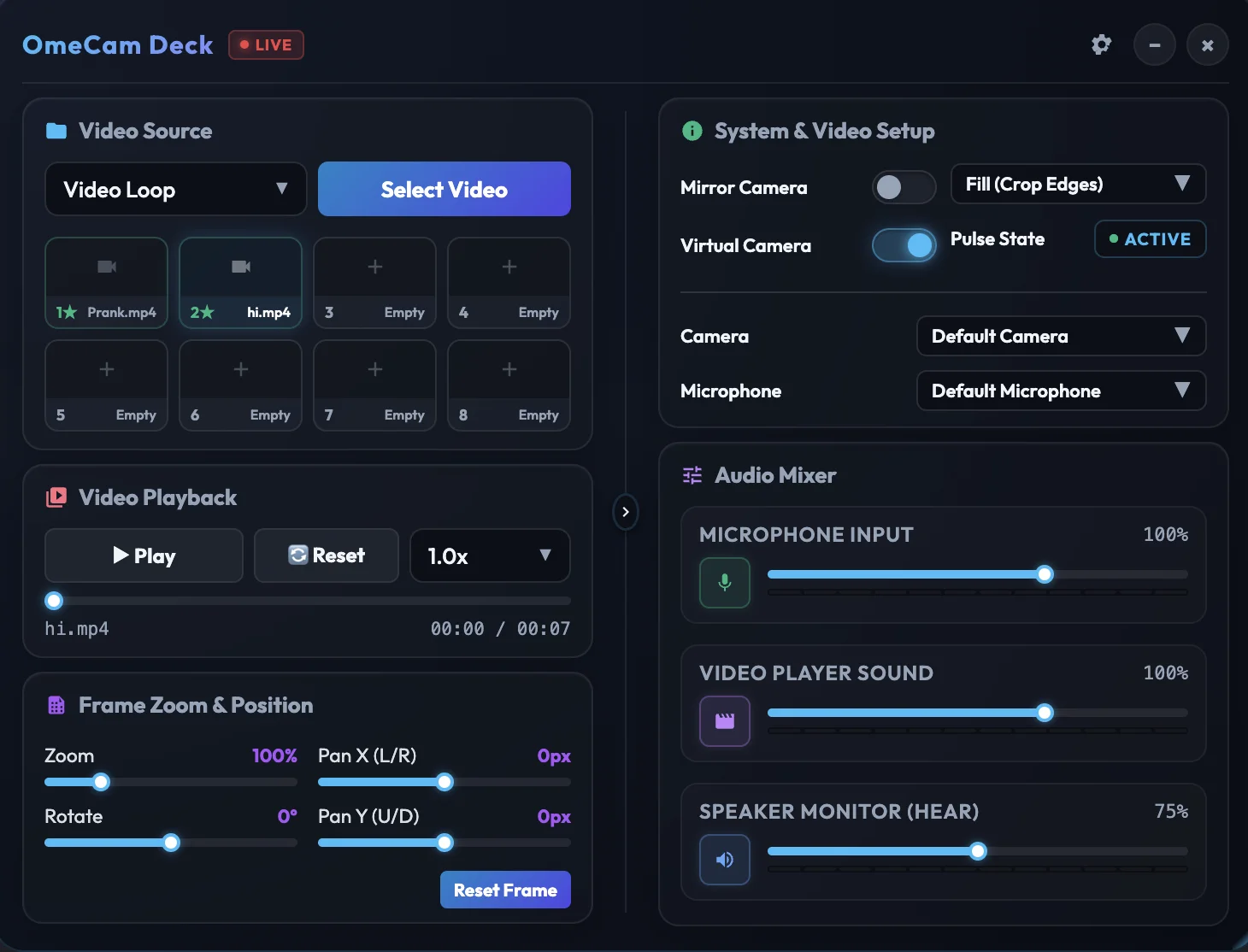
OmeCam registers natively as a hardware-level webcam on macOS, Windows, and Linux, meaning it works flawlessly across all major video chat platforms without triggering virtual camera blocks. No complex setup—just open your website of choice and start streaming.
Works instantly with OmeTV, CooMeet, Monkey.app, and 100+ other platforms. OmeCam integrates natively with any site that uses a camera.
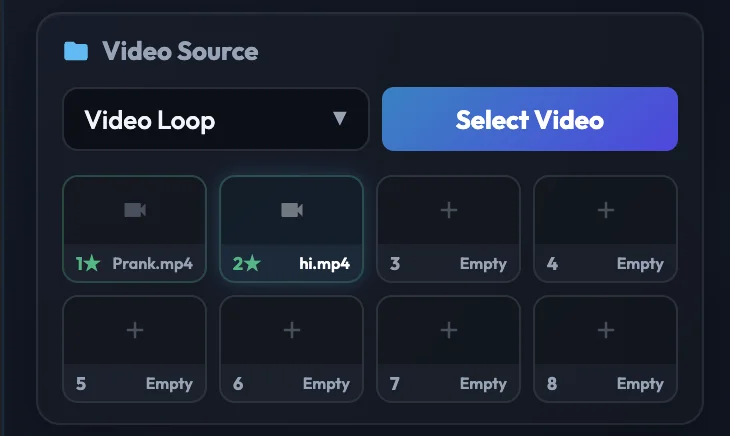
Swap your live camera for pre-recorded clips, pranks, or memes. Load your media slots and stream them in crisp, lag-free HD.
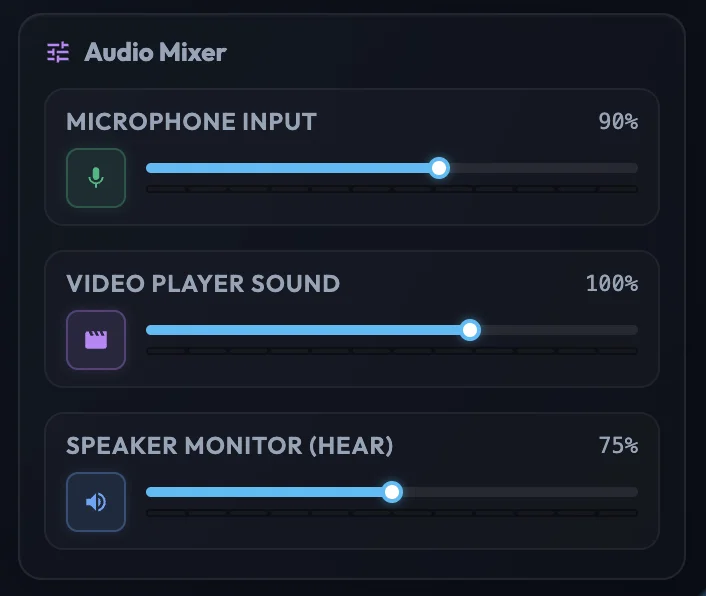
Speak over your video sound naturally. Our dual-channel audio engine blends your voice and video sound perfectly, so you can narrate in real time.
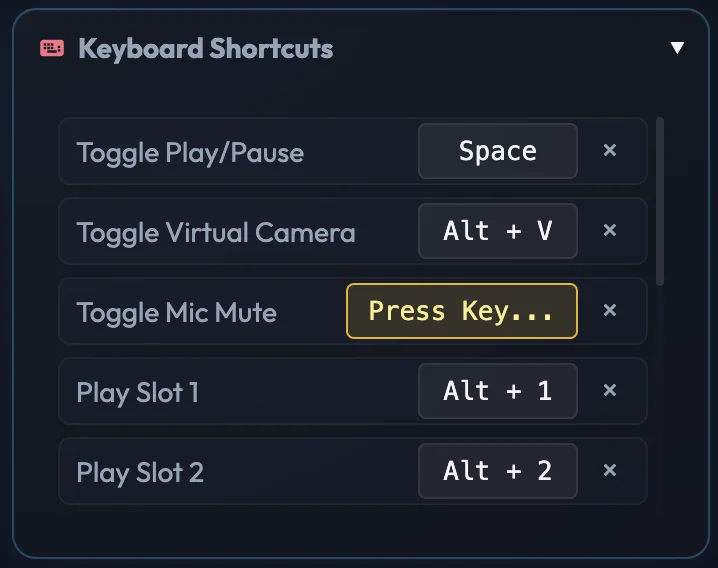
Stay in control without leaving your chat window. Switch loops, pause video, or mute your mic using hotkeys that work while you browse.
Learn how to connect OmeCam's premium virtual camera and apply real-time beauty filters on your favorite video chat networks.
1. Open OmeTV inside the secure OmeCam browser shell.
2. The OmeCam Deck controller will float right over your screen.
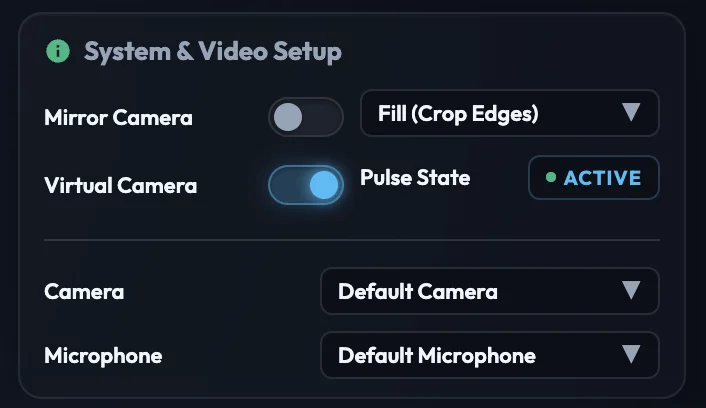
3. Activate "Virtual Camera" in OmeCam and select OmeCam as your input source in OmeTV camera settings.
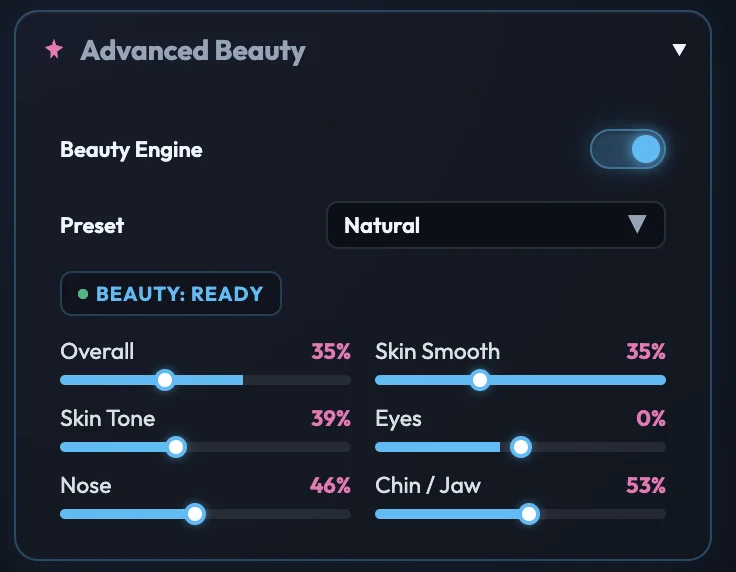
4. Use the facial tuning and skin-smoothing sliders on the Deck to apply face filters instantly.
1. Open CooMeet within OmeCam. Click permit camera when requested.
2. Select the virtual camera on the OmeCam control panel.
3. Adjust the real-time beauty engine to smooth skin and refine features.
4. Switch seamlessly to any high-definition loop videos or media slots with one click.
1. Launch Chatrandom inside the OmeCam browser.
2. The OmeCam hardware-level camera driver bypasses standard site blocks.
3. Select OmeCam Virtual Camera in the Chatrandom camera selector dropdown.
4. Bind global hotkeys to switch streams and mute mics instantly while chatting.
1. Start Emerald Chat within OmeCam to overlay the control panel.
2. Toggle on the virtual webcam feed in OmeCam.
3. In Emerald Chat, select "OmeCam Virtual Camera" as the source.
4. Stream pre-recorded media or share your screen cleanly with no latency.
1. Launch Minichat and enable OmeCam's camera integration.
2. Use the central controller to swap active media loops on the fly.
3. Enhance your stream using five-axis facial tuning and hardware-accelerated filters.
4. Narrate video loops seamlessly with dual-audio mixing of your mic and video sound.
1. Access Camsurf within the secure OmeCam desktop shell.
2. Flip the Virtual Camera switch on the control deck to activate the loop feed.
3. Select OmeCam Virtual Camera from Camsurf's browser permissions dialog.
4. Adjust face-smoothing, skin tone, and nose/chin sliders to fine-tune your look.
1. Launch Joingy in the OmeCam browser shell.
2. Toggle the camera source dropdown on the page to OmeCam Virtual Camera.
3. Set up to 8 media slots on OmeCam and swap them instantly using keyboard hotkeys.
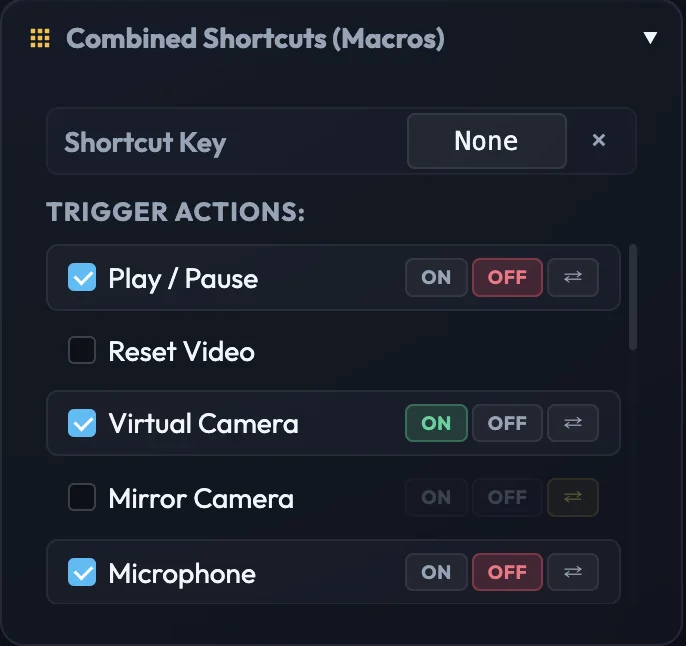
4. Use custom macro keys to pause streams, mute mic, and switch sources at once.
1. Load Monkey.app inside OmeCam's browser window.
2. Activate the real-time AI Beauty Engine on the control panel.
3. Ensure "OmeCam Virtual Camera" is selected in your browser settings for the site.
4. Enjoy face filters, custom overlays, and MP4 video loops natively with zero delay.
1. Start Chatroulette within OmeCam to launch the controller.
2. Change Chatroulette's default webcam source to OmeCam.
3. Toggle between your physical webcam feed and virtual media streams in real-time.
4. Adjust sound levels separately for mic input and video audio preview loops.
1. Open Bazoocam in the OmeCam shell.
2. Grant webcam permission and choose OmeCam Virtual Camera as the input device.
3. Use the skin smoothing and facial filters to optimize your webcam presentation.
4. Trigger your media loops instantly using global hotkeys while in active chat.
1. Load Luckycrush in OmeCam and activate your license key.
2. Set OmeCam Virtual Camera as your active video capture device.
3. Adjust 5-axis facial tuning sliders on the dashboard for real-time beauty enhancement.
4. Switch feeds instantly using background global hotkeys with no latency.
1. Open Camfrog web app within OmeCam.
2. Toggle Virtual Camera to ON state on the control deck.
3. Map OmeCam Virtual Camera as the main webcam source in Camfrog chat settings.
4. Play high-definition video loops and mix microphone audio together with video sound.
1. Access Tinychat in OmeCam to activate the overlay control panel.
2. Change the default webcam input in Tinychat web client to OmeCam.
3. Slide face-tuning controls to smooth skin or toggle virtual camera feeds instantly.
4. Share your screen or app window cleanly with friends on the channel.
Got questions about OmeCam? Find quick answers here or contact our support team.
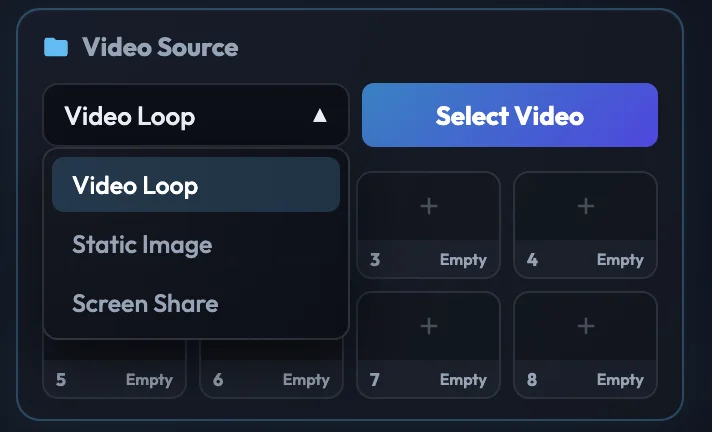
OmeCam is a premium hardware-level virtual camera for macOS, Windows, and Linux. It lets you loop pre-recorded videos, share your screen, and apply real-time skin-smoothing filters directly inside web-based video chats on all versions including x64 and ARM64.
OmeCam works seamlessly across all web-based video chats, including OmeTV, CooMeet, Azar, Chatrandom, Omegle alternatives (such as Monkey.app, Joingy, Emerald Chat, Luckycrush), Chatroulette, Bazoocam, Camsurf, Minichat, Tinychat, Camfrog, and any other site that uses your webcam.
Yes, OmeCam is fully optimized and natively supports all Apple Silicon processors (M1, M2, M3, M4, M5) as well as Intel-based Macs running macOS 12.0 or newer.
Yes, OmeCam is fully optimized and natively supports Windows 10 and Windows 11 on both x64 and ARM64 (Windows on ARM) architectures.
Yes, OmeCam is fully optimized and natively supports Linux distributions (such as Ubuntu, Debian, and Fedora) via .AppImage format on both x64 and ARM64 architectures.
Yes, paid licenses (1-Month, 3-Month, and Lifetime) are fully transferable. You can deactivate OmeCam on one Mac and activate it on another device instantly. Trial keys are locked to a single device.
OmeCam registers at the core system level on your Mac. Websites and browsers see it as a real physical USB camera plugged into your port, bypassing virtual camera blocks completely.
After a successful purchase on our store, your license key is displayed immediately on the receipt page and emailed to you. You can copy-paste it directly into the OmeCam activation screen.
OmeCam features a built-in real-time AI Beauty Engine that serves as a premium OmeTV filter, CooMeet filter, and Chatrandom filter. Once OmeCam is active, you can use the facial-tuning and face-smoothing sliders inside the dashboard to apply beauty filters natively to your camera stream across all video chat sites with zero lag.